
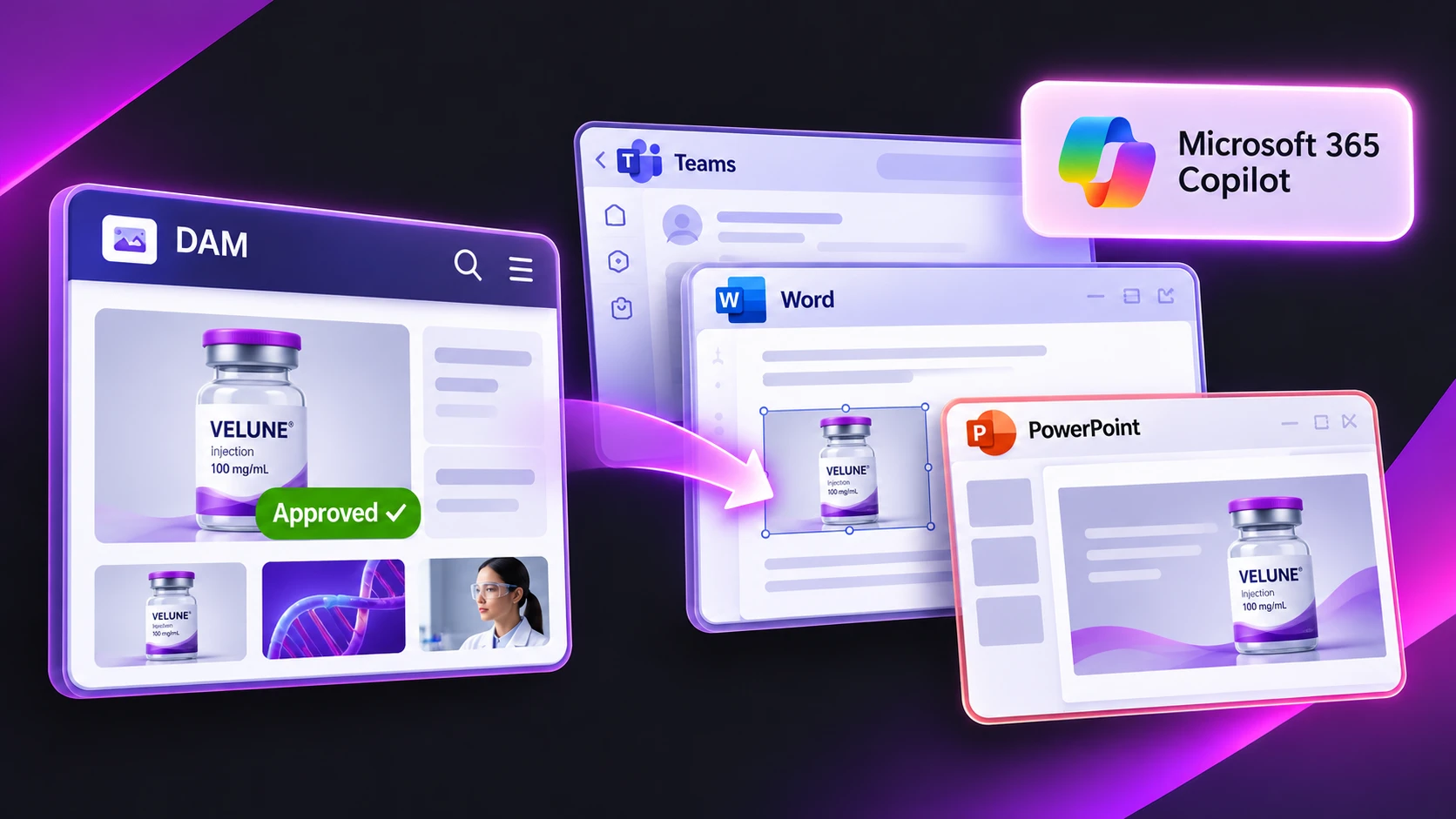
Most marketing work happens in Microsoft 365. Briefs are written in Word, decks are built in PowerPoint, and updates move through Teams. The assets those documents need usually live somewhere else. Forrester’s analysis of Copilot adoption found that “most enterprises remain in pilot mode,” and it stated the dividing line plainly: “Governance determines who scales and who stalls.”
As a result, assets from a digital asset management (DAM) system should reach the Microsoft 365 environment. Teams, Word, PowerPoint, and Microsoft 365 Copilot users can then search for approved, current files. They can insert approved assets directly into their documents. A DAM Microsoft 365 integration works only when it respects the DAM’s permissions and approval status. The metadata behind each asset also needs to be good enough for an AI assistant to find the right version.
TL;DR
- Connecting the DAM to Microsoft 365 removes the download-and-reupload step that causes outdated files to spread through Word and PowerPoint.
- Connect only approved, current assets, and set permissions before users insert their first asset.
- AI assistants are only as good as the metadata behind the assets, so invest in tagging before adding integrations.
- Aprimo’s current Microsoft 365 Copilot approach uses a declarative agent that inserts assets into Word or PowerPoint desktop, and it requires tenant-level deployment by an administrator.
Why assets leave the DAM
When an asset is hard to reach, users often download a local copy. A marketer building a deck in PowerPoint realizes they need the latest product image. They open a browser, log in, search, download the file, and insert it from the downloads folder. Across dozens of assets and several people, the DAM gradually becomes a library that people visit only when they have to. Local copies then drift out of sync as new versions are approved, and nobody sees which version is in the document.
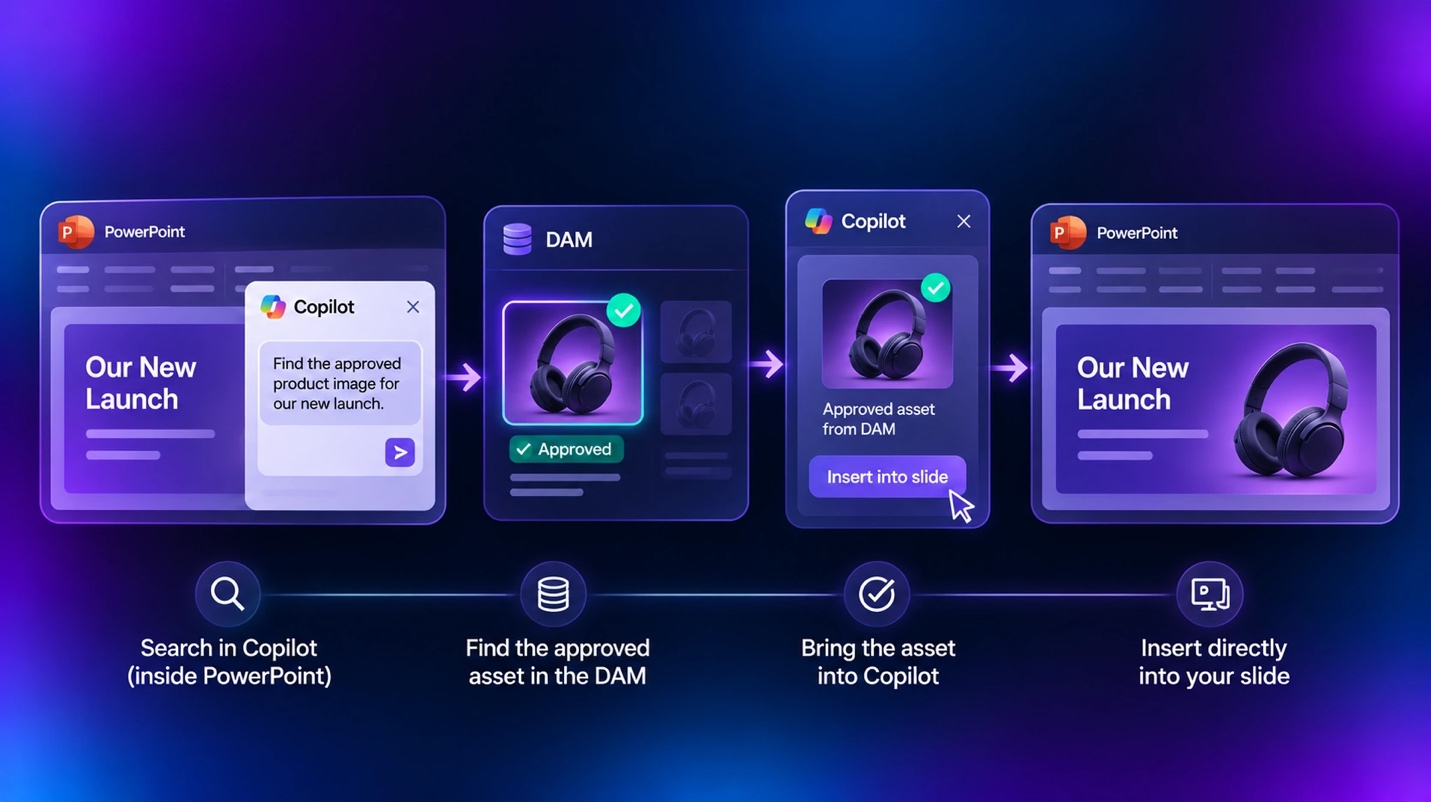
The problem is not the DAM’s governance. The approval workflow and version control work as designed. The problem is the distance between the place where work happens and the place where approved content is stored. Closing that distance is what the Microsoft 365 integration is meant to do.
What Aprimo supports today
Microsoft 365 Copilot can be extended with declarative agents, which are custom assistants that appear inside Copilot in Teams, Word, PowerPoint, and other Microsoft 365 apps. Aprimo’s developer documentation describes this integration in two parts. An API plugin lets the agent search for assets, retrieve their metadata, and surface results in the Copilot conversation. Office Add-in Insert Actions then place the chosen asset into the open document.
The insert actions have specific limits. They run only inside an Office desktop host. InsertImageAsset downloads an image and places it inline in Word or PowerPoint. InsertAssetReference inserts a text reference with the asset’s title and link. The insert actions are not available from the Copilot web interface or from Teams chat. Teams is where users find the agent, but the insertion step happens in the desktop document.
Deployment is also specific. Each customer receives a separate app package built from its own tenant. The customer’s Microsoft 365 administrator uploads the package for deployment. The documentation notes that some tenants restrict these agents from being deployed to the whole organization, which is a setting the administrator controls. The same page describes this area as “actively evolving,” and the reference implementation is published openly on GitHub. Before you plan around these capabilities, confirm the current state with your Aprimo customer success manager.
Third-party connectors
CI HUB connector integrates Aprimo with Word, PowerPoint, Excel, and Outlook. Setup is handled in the Office app. Users install the add-in from Microsoft AppSource, sign in to CI HUB, and then add their Aprimo connection from the panel by authenticating with their Aprimo credentials. Once connected, the panel searches the assets that the user can access in Aprimo. It offers search filters and folder navigation. For more detail, see the CI HUB installation guide.
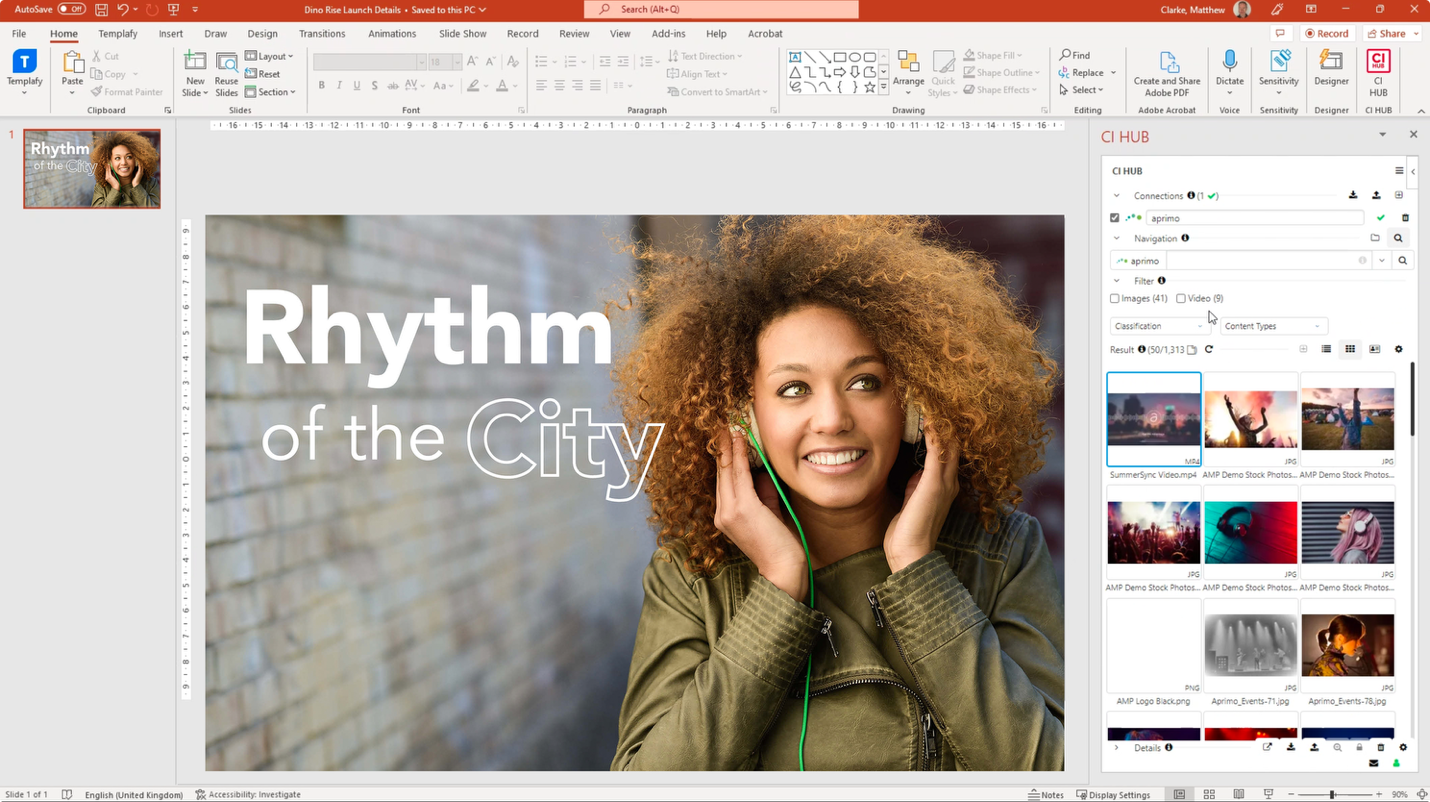
Access is governed on the Aprimo side. The Aprimo integration uses OAuth2, which lets users grant access to the repository without CI HUB seeing or storing their credentials. CI HUB’s feature matrix lists user roles as managed by the partner system. It also states that the panel does not manage asset-access logic. Version logic follows the same pattern: CI HUB says business logic for asset versioning is implemented by the partner, not by the connector. Administrators can also control which integrations appear for which users, including automatic assignment of new users by email domain.
Build Your DAM RFI in Minutes
Generate a tailored RFI based on your requirements, use cases, and business goals.
Governance best practices for a DAM Microsoft 365 connection
Before connecting anything, decide three things.
- Asset types: Decide which asset types should be available through Microsoft 365. Many teams start with images and logos. They keep video, unreleased product content, and regional legal copy out of the first release.
- Roles and permissions: Decide which roles can use, insert, or edit which assets. Apply the same rules to the Microsoft 365 entry points that you apply in the DAM, so a regional team cannot insert or edit another region’s assets.
- Retirement: Decide what happens when an asset is retired. If a product image is recalled, the Microsoft 365 connection should not keep serving it. Test that case before you go live.
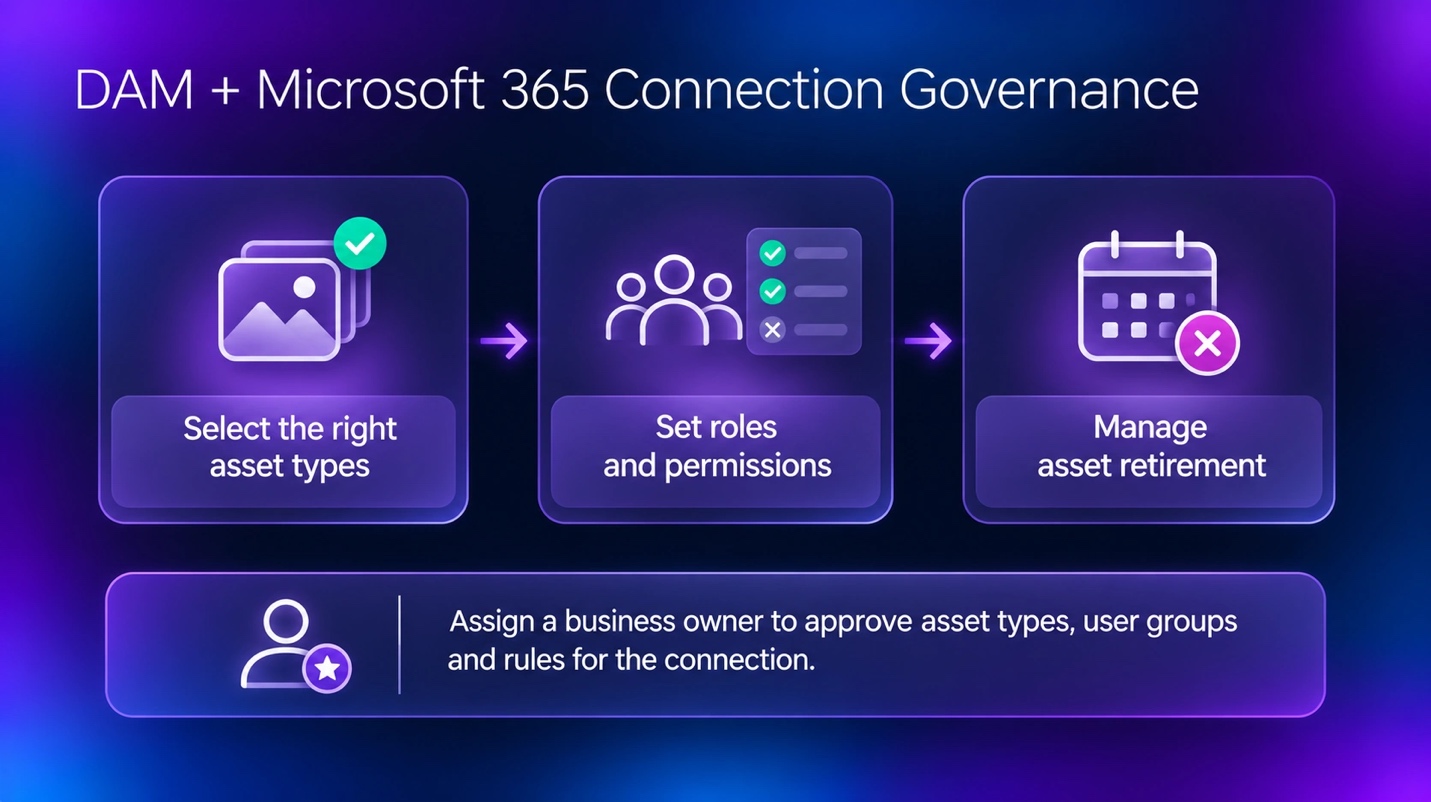
Governance also covers the people who will use the connection. Forrester describes this kind of governance as defining “where Copilot can be used, how data is accessed, [and] who approves new use cases.” Name a business owner for the integration who can approve new asset types and user groups, then document the rules in one place.
AI reads metadata very carefully
A Copilot agent does not understand your library the way a librarian does. It searches the metadata and text associated with each asset. If an image is tagged with an outdated product name, or a regional version is missing its market field, the assistant may return an incorrect result or no result at all. The quality of the metadata therefore determines the quality of the experience.
Organizations must structure their knowledge so that large language models can access clean data, curated assets, and standardized taxonomies. For DAM, that means consistent product names, model years, markets, usage rights, and expiry dates. Aprimo’s Librarian Agents are designed to add metadata automatically, which helps, but people must still agree on the taxonomy. The predictive metadata in DAM post explains how automated tagging fits alongside a managed taxonomy.
Common mistakes to avoid
When making DAM assets available in Microsoft 365, these are some mistakes that come up repeatedly:
- Connecting the whole library on day one: This approach creates unnecessary risk exposure. Ideally, surface only approved, current assets, then expand from there.
- Treating the integration as an IT project: Marketing and Content Operations teams own the asset rules, so they should own the Microsoft 365 rules too.
- Skipping the retirement test: An asset that has been recalled but still appears in Copilot search is a governance failure, even if the integration itself works. Test how well your workflow removes recalled assets before launch.
- Assuming the integration fixes adoption on its own: Teams will use the connection if it is faster than the workaround. They will keep the workaround if the connection returns stale results. The approved path must be the fastest path.
Start with one team
Connecting Aprimo to Microsoft 365 is most valuable when it changes daily behavior: people insert the approved logo instead of a saved copy, and the document reflects the current version. Start with the workflow that causes the most drift. Govern the assets and metadata behind it, then measure the change before expanding. If you want to see how Aprimo’s Microsoft 365 approach would work with your asset library and teams, request a tailored demo.
FAQ
Can Aprimo assets be inserted into Word from Microsoft 365?
Aprimo’s developer documentation describes add-in actions that insert images or asset references into Word or PowerPoint desktop. Insertion does not work in Copilot web or Teams chat.
Does the Aprimo Microsoft 365 integration work inside Teams?
Users find the Aprimo agent in Teams’ Copilot agent store and search assets in the Copilot conversation. Insertion happens in desktop Word or PowerPoint, not Teams chat.
Who controls which assets appear in Microsoft 365?
The permissions and approval rules configured in Aprimo should carry over. Assets a user cannot view in the DAM should not appear in Microsoft 365 search. Test recalled assets too.
Why does metadata matter for Copilot?
Copilot agents search the metadata and text attached to assets. Missing or outdated product names, markets, or expiry dates produce wrong results. Agree on a taxonomy first.
Where should a team start with a Microsoft 365 DAM integration?
Start with one team and one asset type, such as logos for regional presentations. Measure insertion time, local downloads, and outdated documents before expanding.
Related reading: Aprimo integrations, Digital Asset Management, and predictive metadata in DAM.